Goal of this script
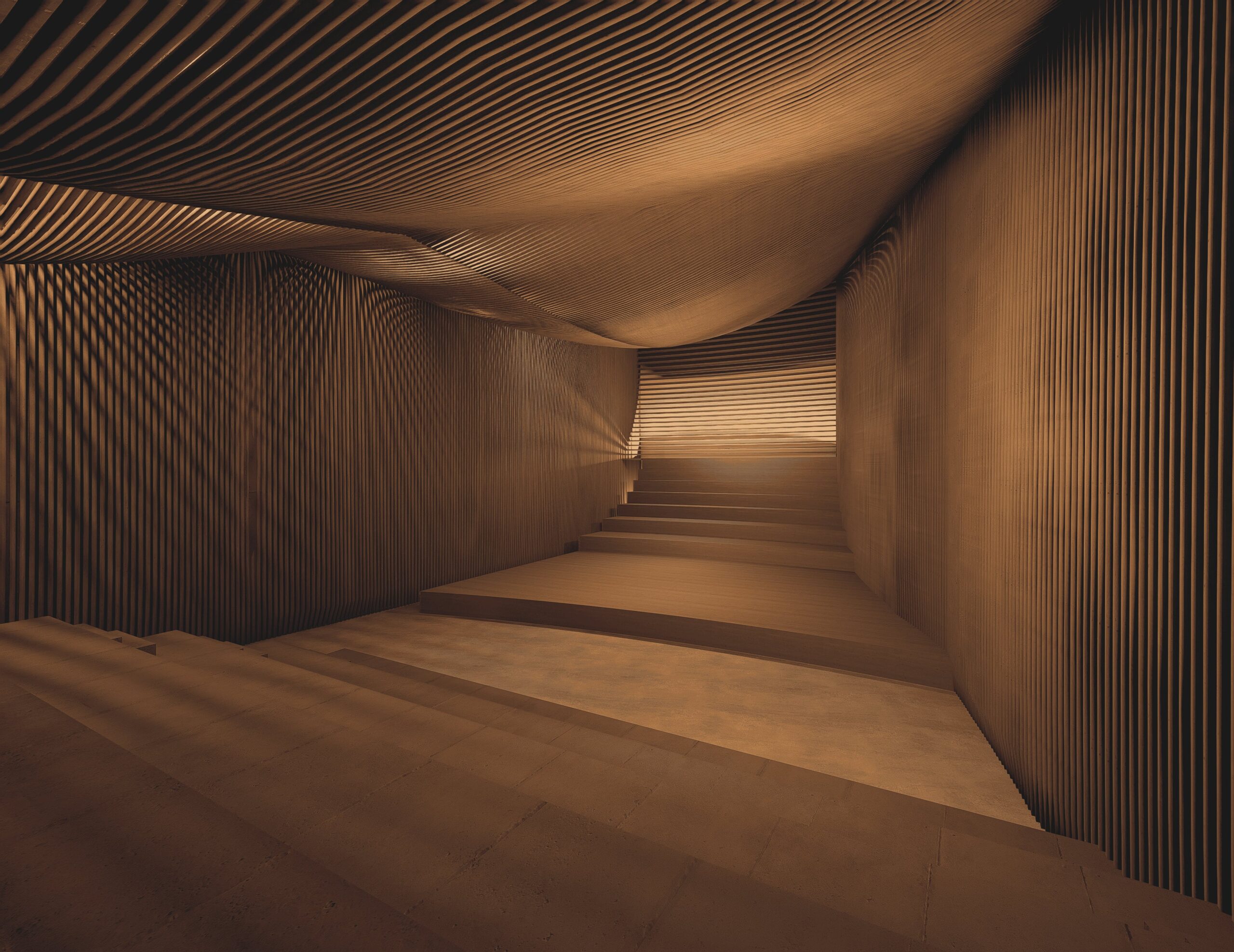
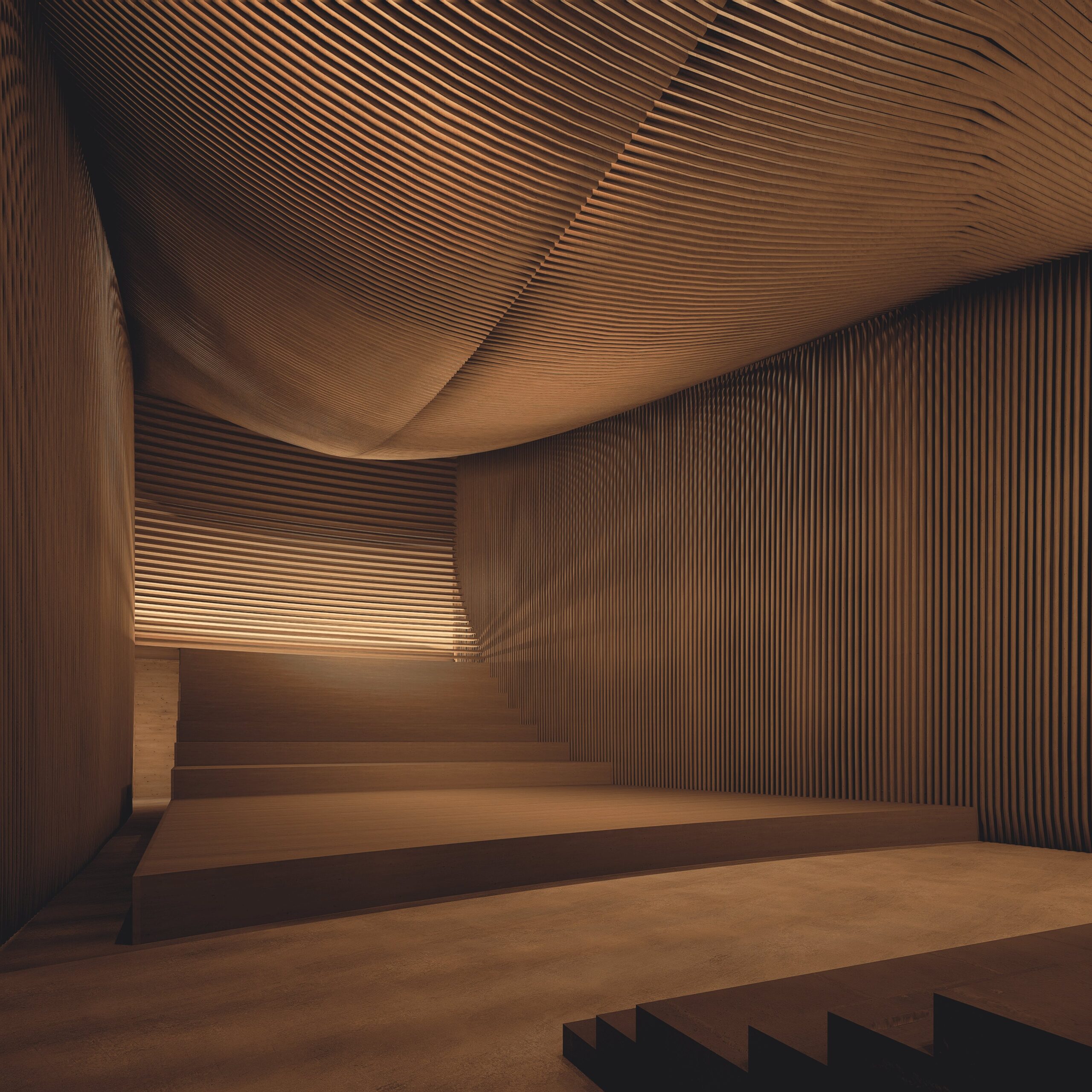
What I wanted to do was an acoustic treatment for my concert hall with wooden slats.
With the shape that my room was, i felt that it needed a more organic and flowy wooden structure to make the space seem more cozy.
TUTORIAL
1. Extraction from Archicad
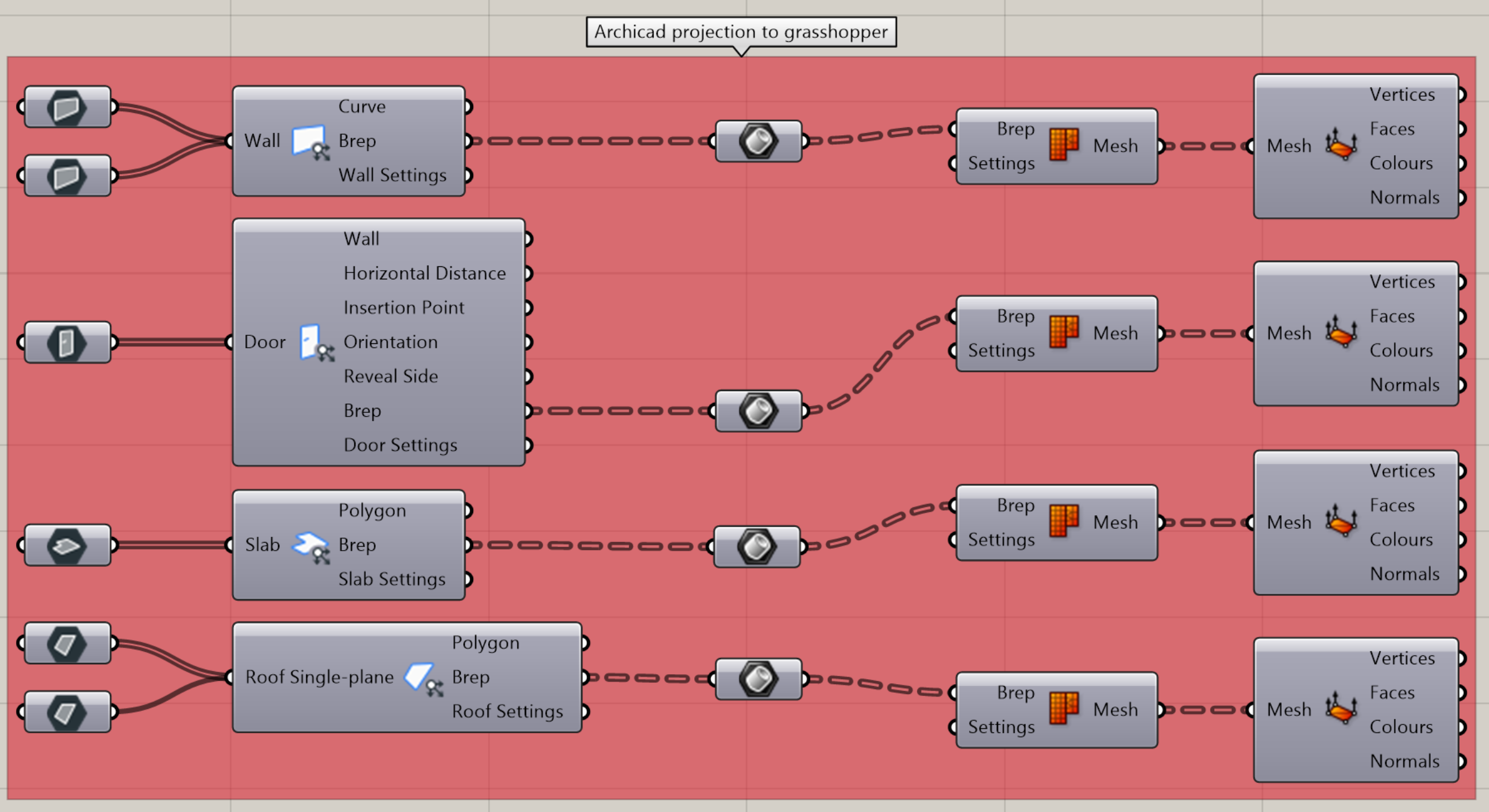
Since I’m working with Archicad, i downloaded the Archicad livesync.
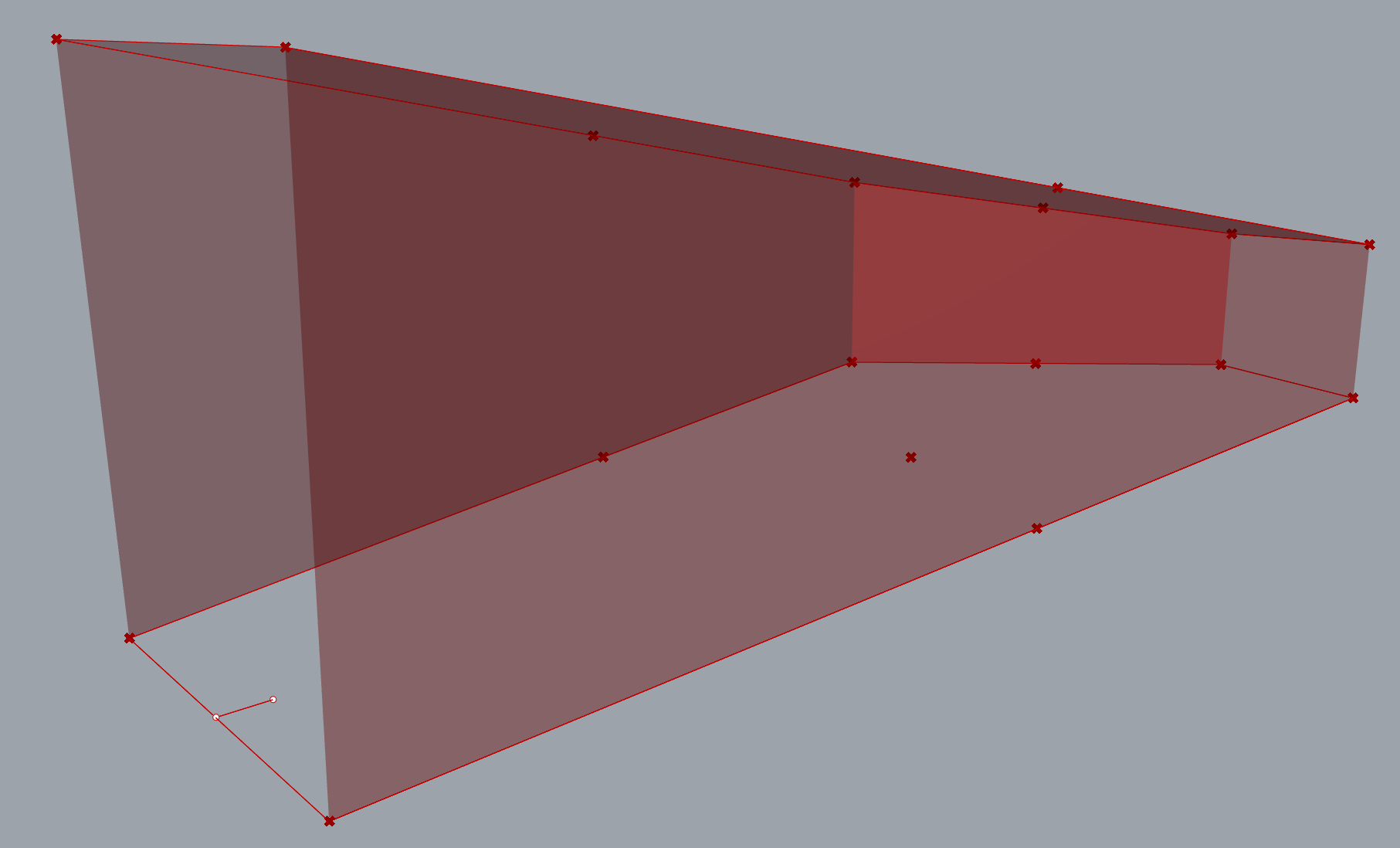
I wanted to project my Archicad room into Grasshopper and Rhino, so i used the Archicad Deconstruct Wall, Deconstruct Door, Deconstruct Slab and Deconstruct Roof. I placed and selected multiple of these objects and connected them inside Grasshopper. After that, I extracted the Brep if these nodes and turned them into a mesh, that I’ve then deconstructed into points, where I chose which points I wanted.
2. Bouncysolver
After selecting all the wanted points, I created surfaces that I plugged into Mesh Surface.
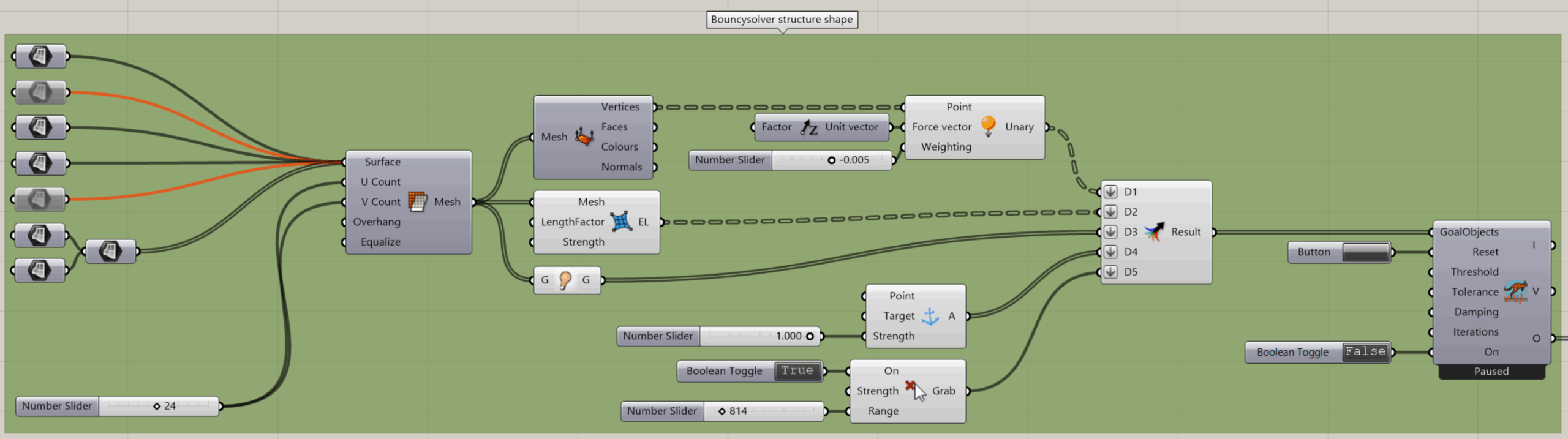
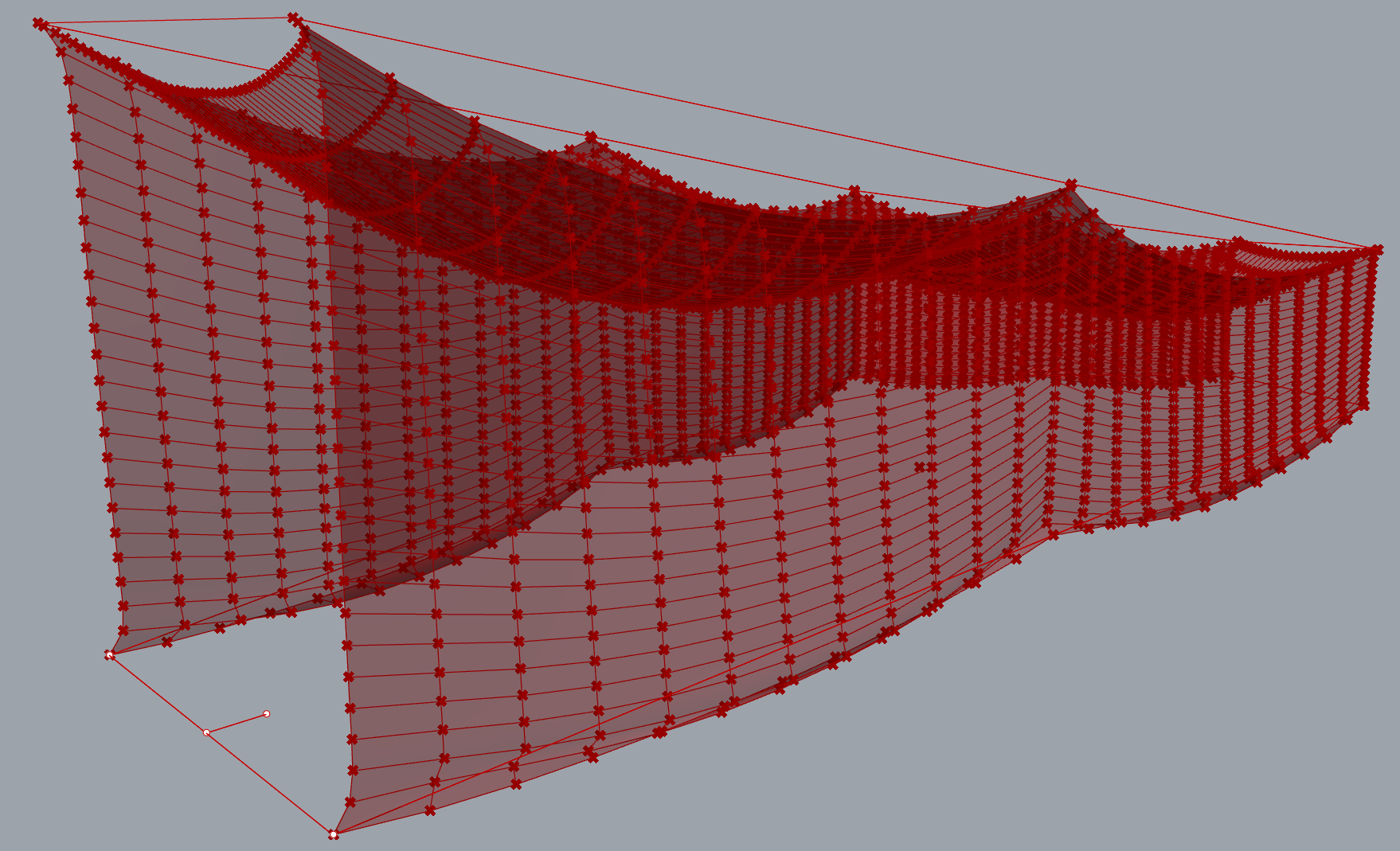
This Mesh Surface is then used as the main structure shape, which is used with the Bouncysolver.
I deconstructed points from the Mesh Surface and applied a Load onto them with a Unit Z vector to select the correct gravitational direction and a Number Slider for the strength of the vector applied.
The next part of the Bouncysolver is EdgeLengths which take the shape of the Mesh Surface.
A small part, which is helpful, is the Show node to make the surface of the Bouncysolver visible.
Next, what the Bouncysolver needs is the Anchor node to connect the mesh to certain points so that it doesn’t float away. This node also has a Number Slider to select the wanted Strength of the anchor points.
Lastly, what I find quite useful is the Grab node which makes it possible for me to grab the simulated mesh and pull it towards my wanted direction and additionally shape it.
All of these nodes are then plugged into Merge, flattened and sent into the Bouncysolver’s GoalObjects where I also plugged a Button into Reset and a Boolean Toggle into On. This controls the simulation and you can pause it whenever you feel like the desired shape is complete.
3. Contours from resulting mesh
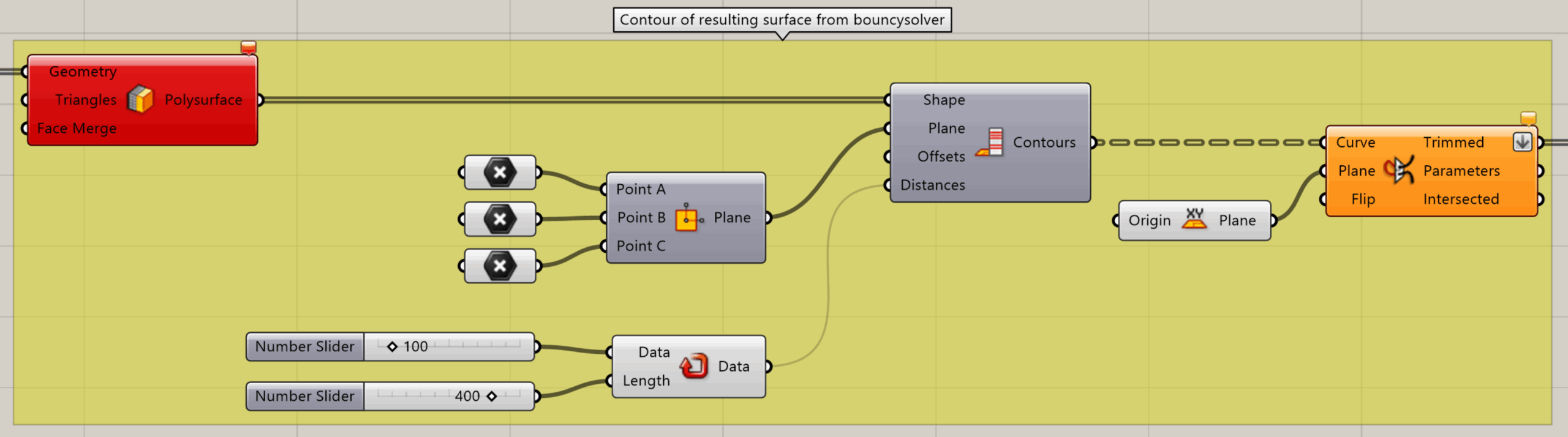
I feed the resulting geometry from the Bouncysolver into Mesh to Polysurface, which comes from the Pufferfish plug-in and transforms the geometry into a Brep.
I connected this Brep into a Contour (ex), which slices the Brep into curves. I needed to construct a plane that will slice the Brep and for this, i chose to use the Plane 3Pt as to not only make a generic surface, but to twist it to a specific direction. The last node needed for the Contour (ex) to work is the Repeat Data where I put two Number Sliders of which one chooses the length of the repetition and the other chooses how many repetitions I need.
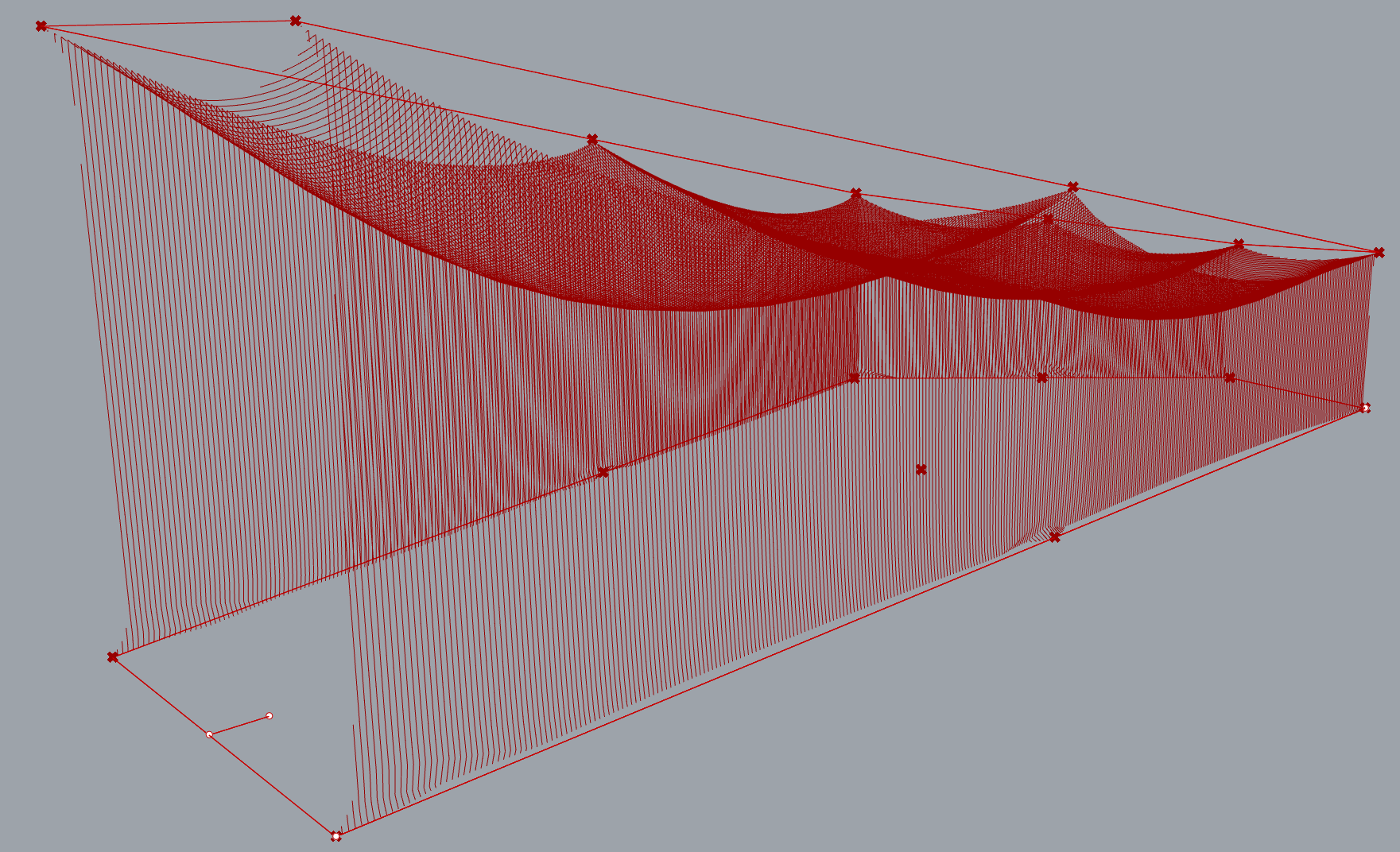
The resulting curves are trimmed where the floor starts with Plane Trim Curve, where i wanted it to be at XY Plane. I also flattened the Trimmed output.
4. Parametric mesh pipe
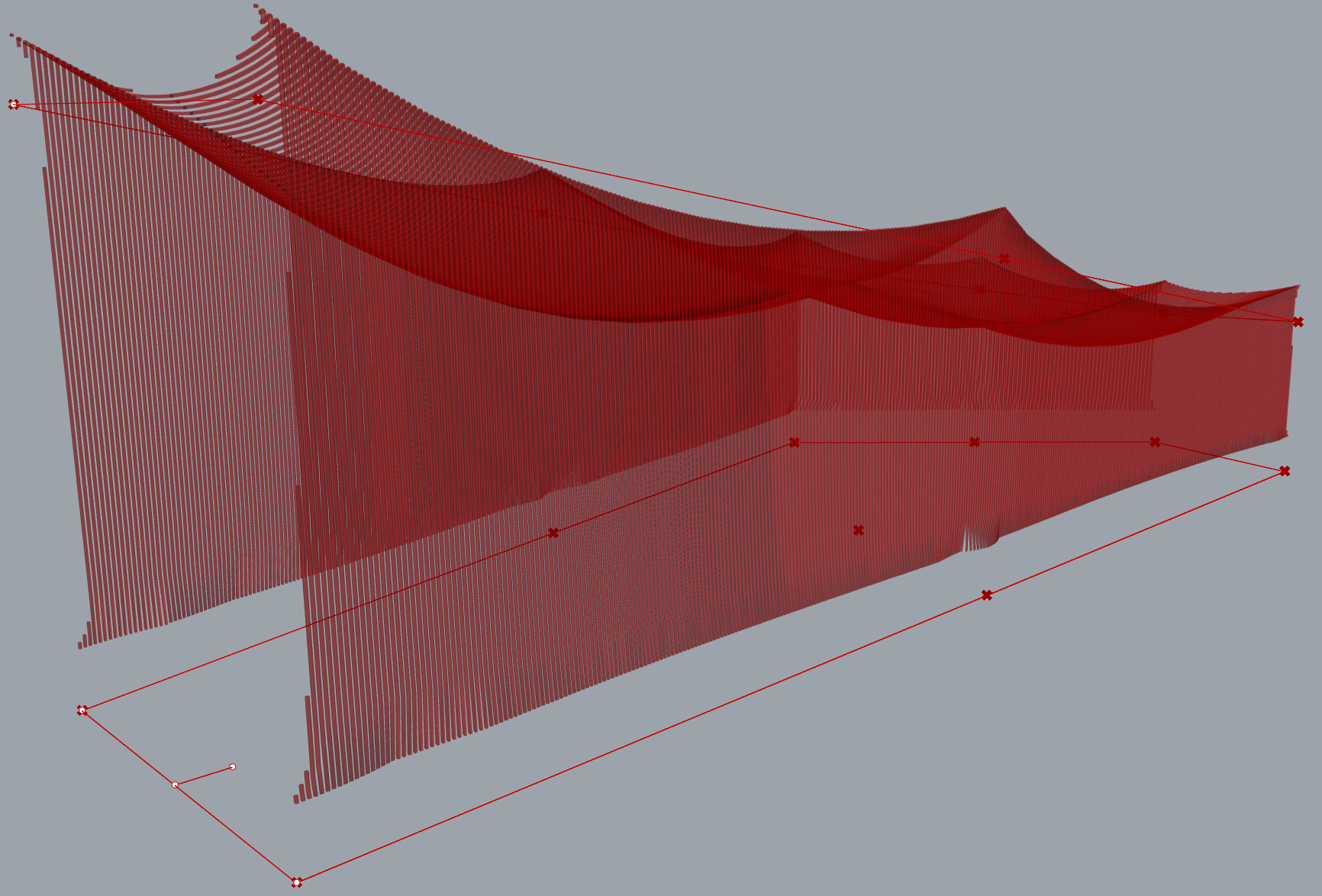
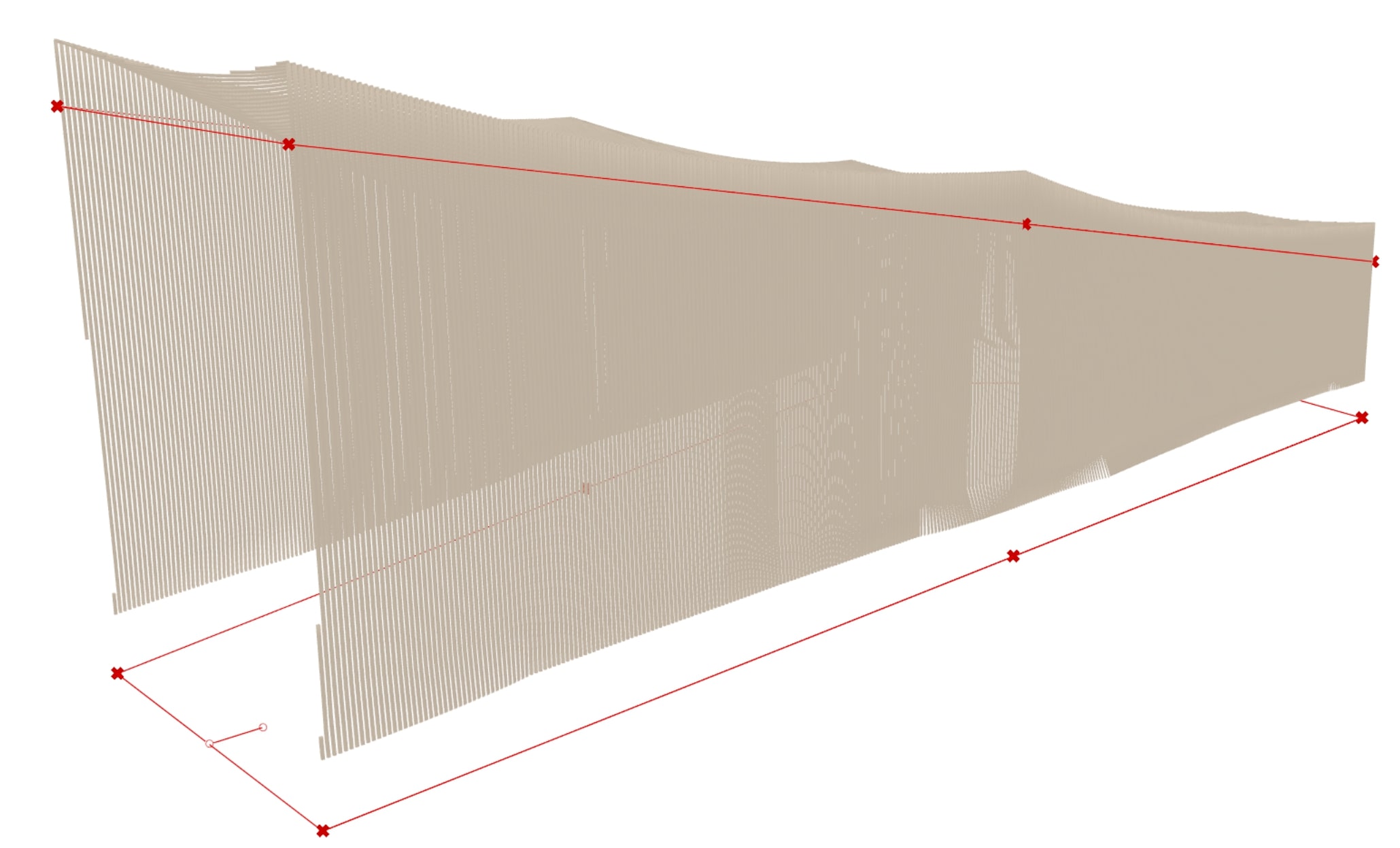
Last step I made was to make the slats from the resulting curves.
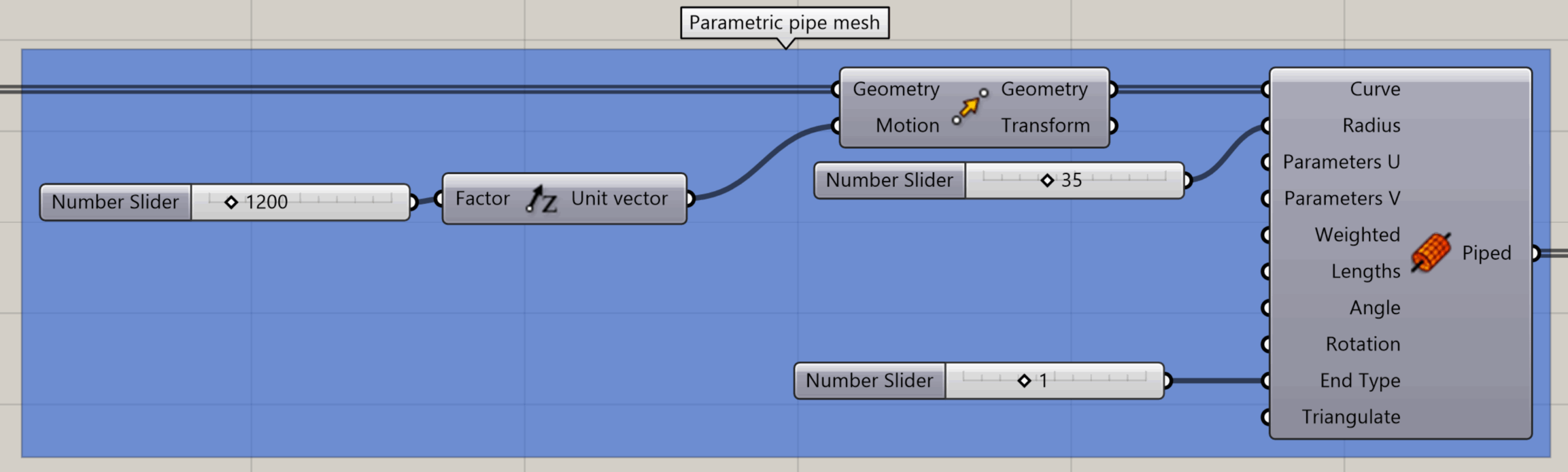
Firstly, I wanted to move the construction with the Unit Z to have it at a specifis height with the Move.
This is plugged into Parameter Pipe Mesh from the Pufferfish plug-in to the curve input.
With the Parameter Pipe Mesh, I also chose the desired radius with a Number Slider and end type of the mesh with a value from a Number Slider as well.
5. Archicad result sync
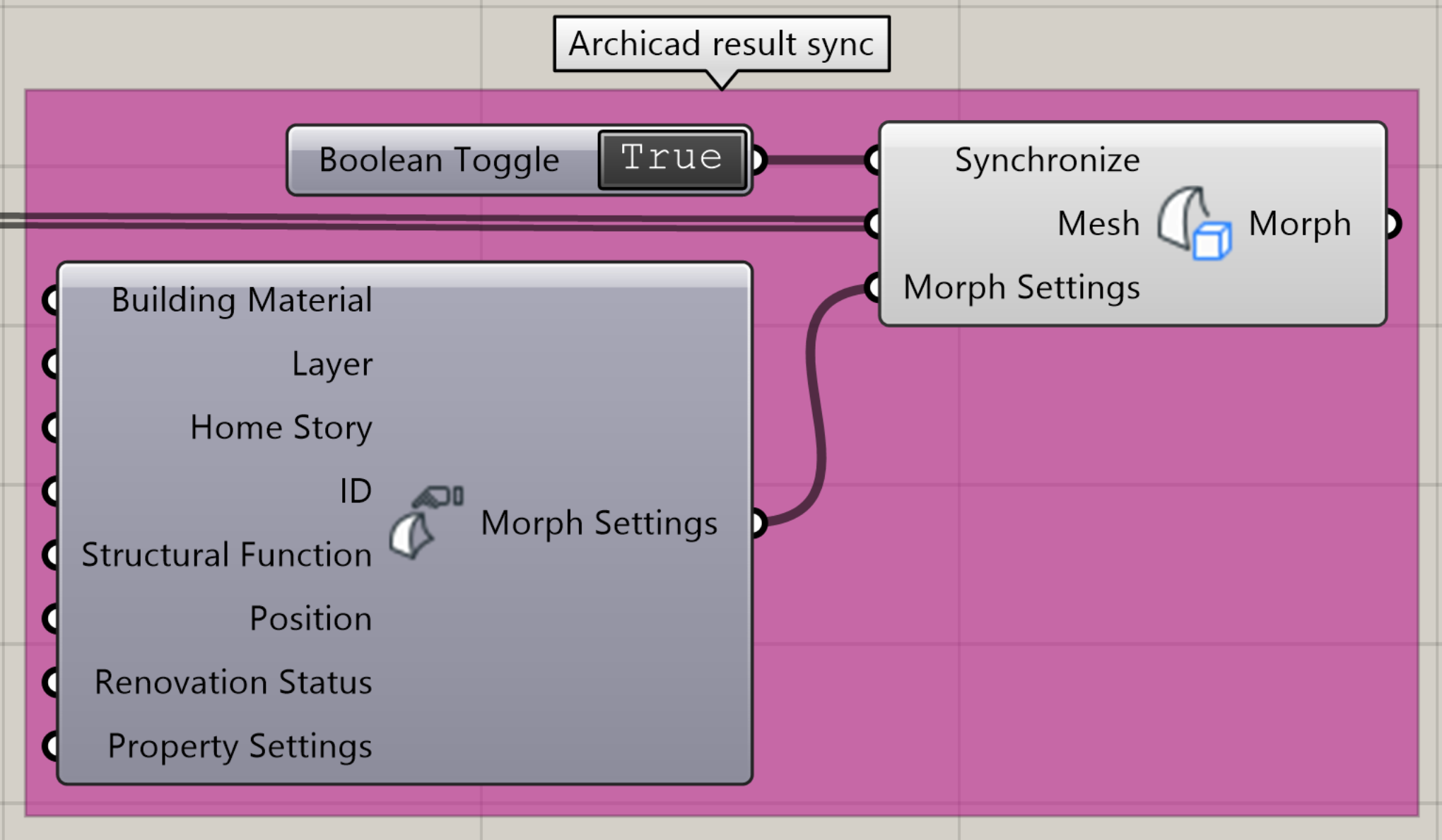
To project the resulting slats into Archicad, i plugged the resulting geometry from Paratemer Pipe Mesh into Archicad Morph Solid, which also mas a Boolean Toggle plugged into the Synchronize input to make the connection between Grasshopper and Archicad live and Archicad Morph Settings plugged into the Morph Settings input to select the desired morph settings in Archicad.
Final Result
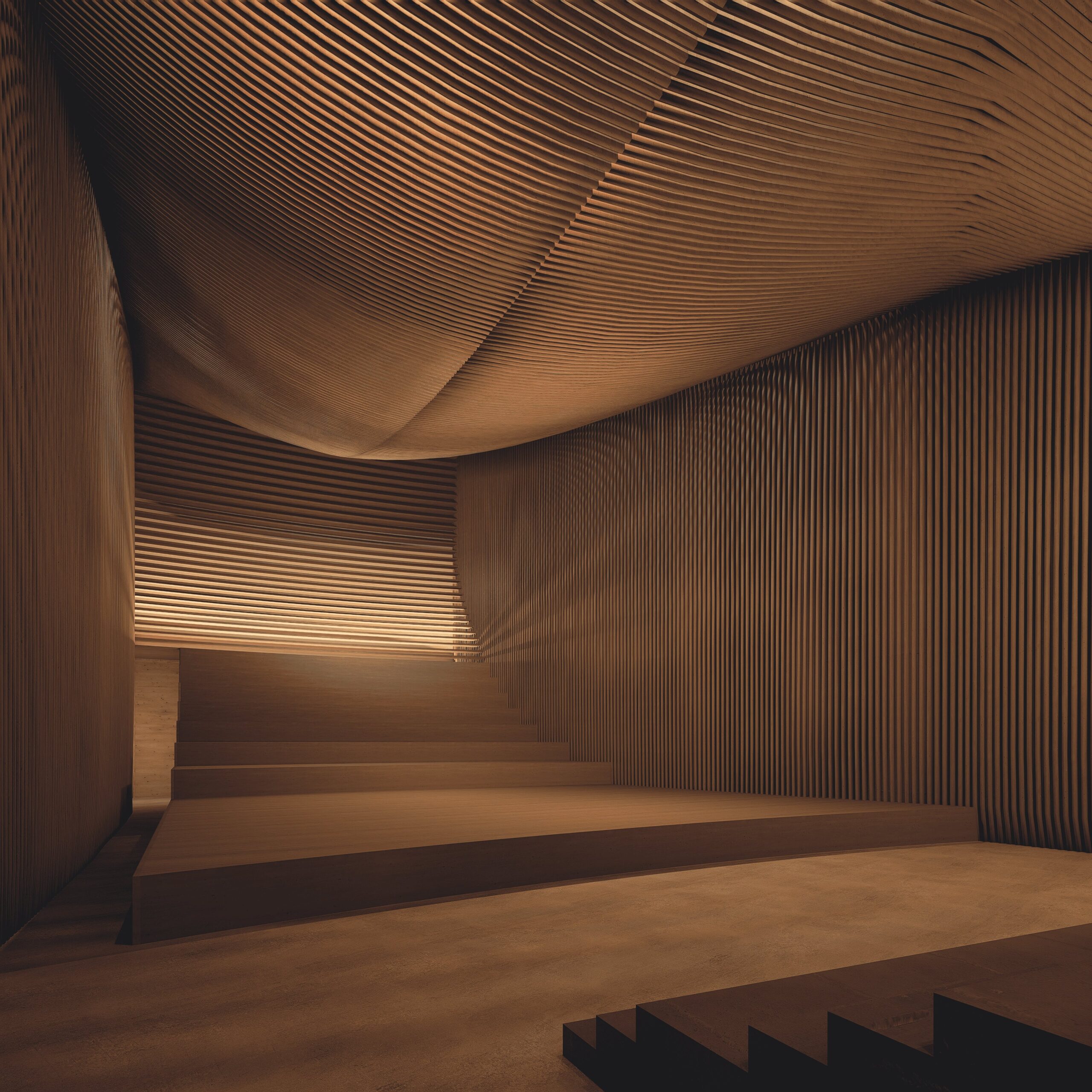
I have then livesynced the Archicad file and rendered the resulting structure in D5 Render.